
Help Center › Jobs & Projects
Send an internal message in a job’s Team chat
A 30-second how-to with the steps and screenshots below.
In this guide
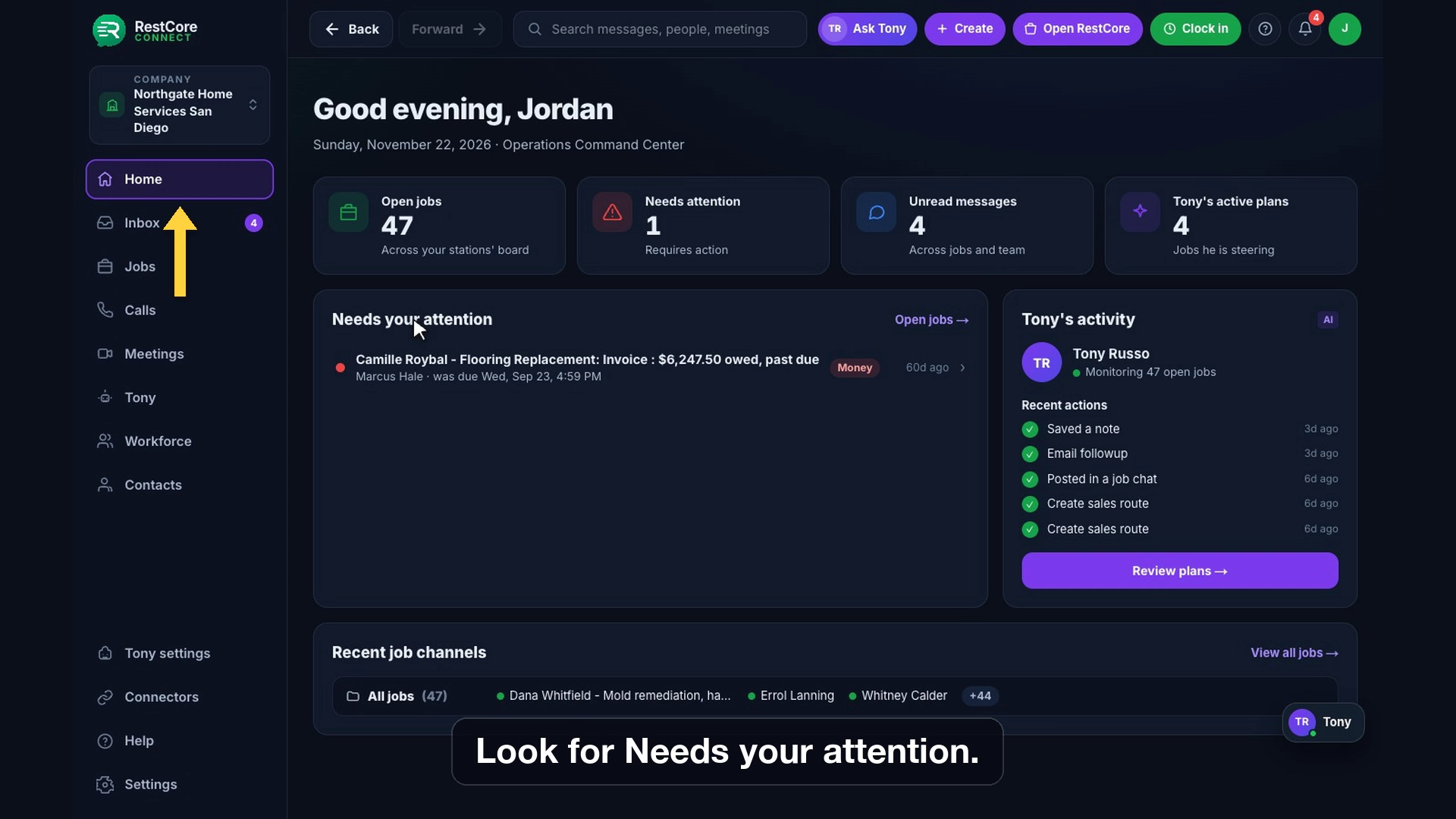
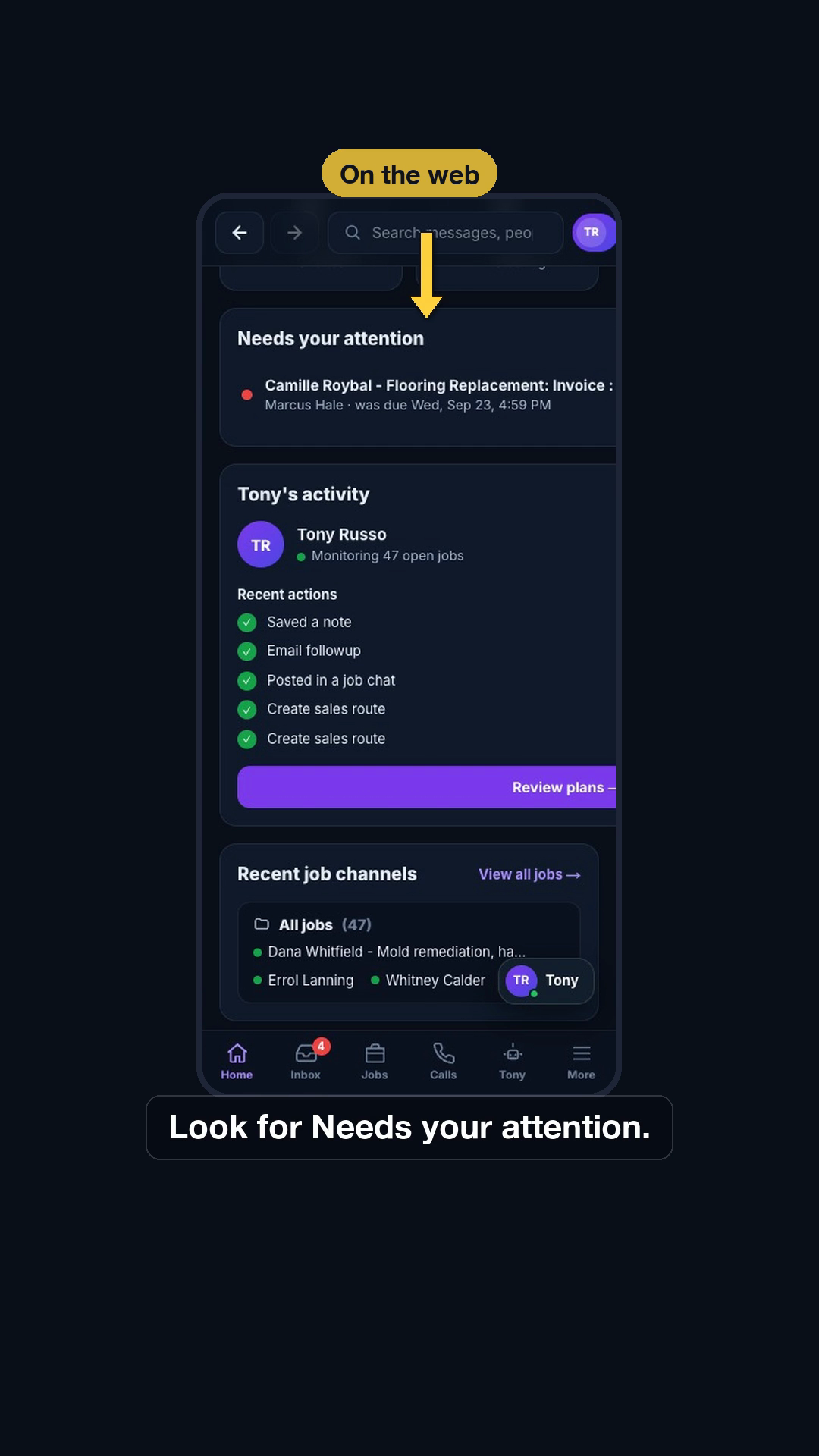
- 1Open the job’s Team chat.
- 2Check that this message is for your team.
- 3Write your internal job update.
- 4Send the message to the job team.
- 5Check that your message appears.
1Open the job’s Team chat
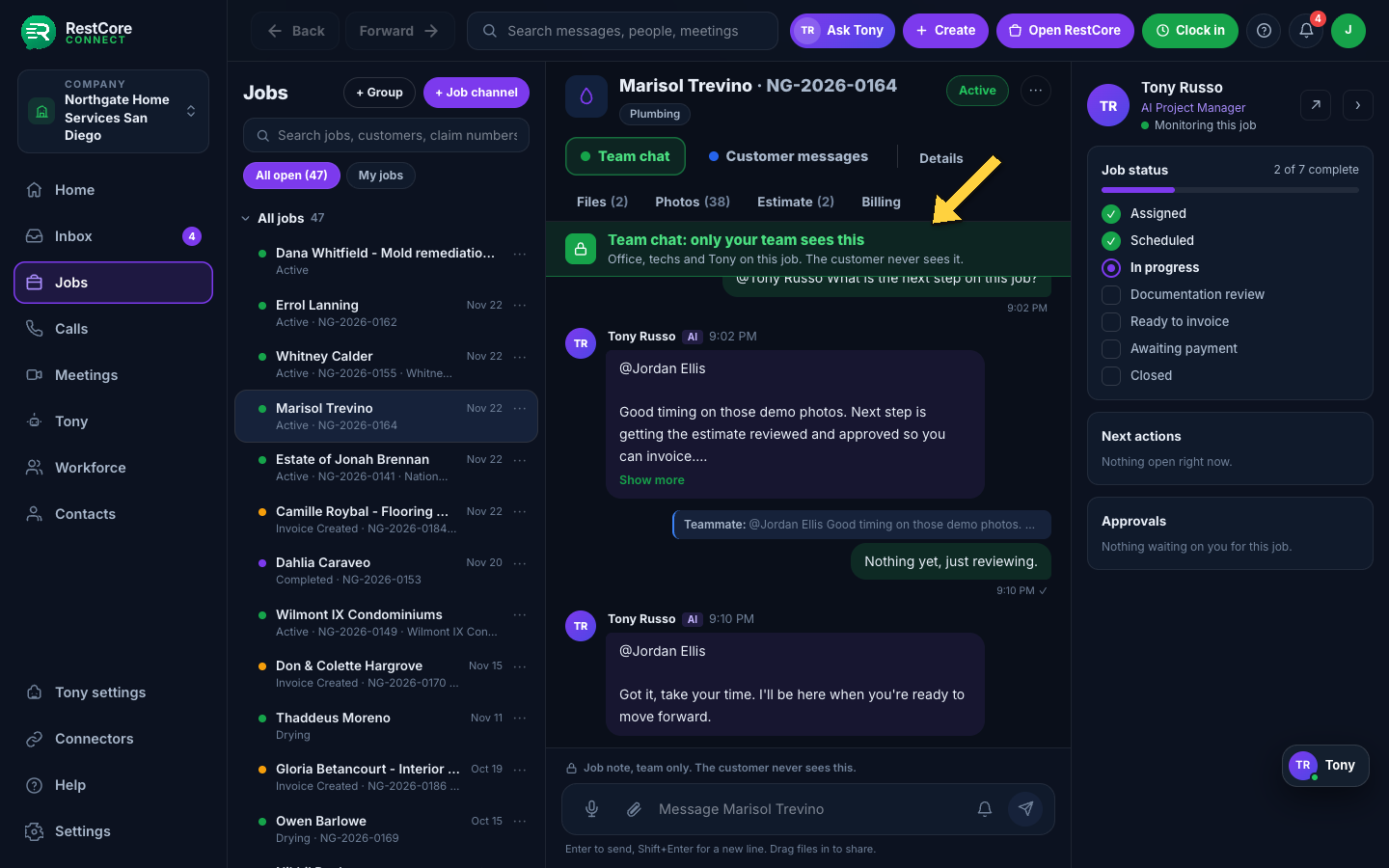
2Check that this message is for your team
3Write your internal job update
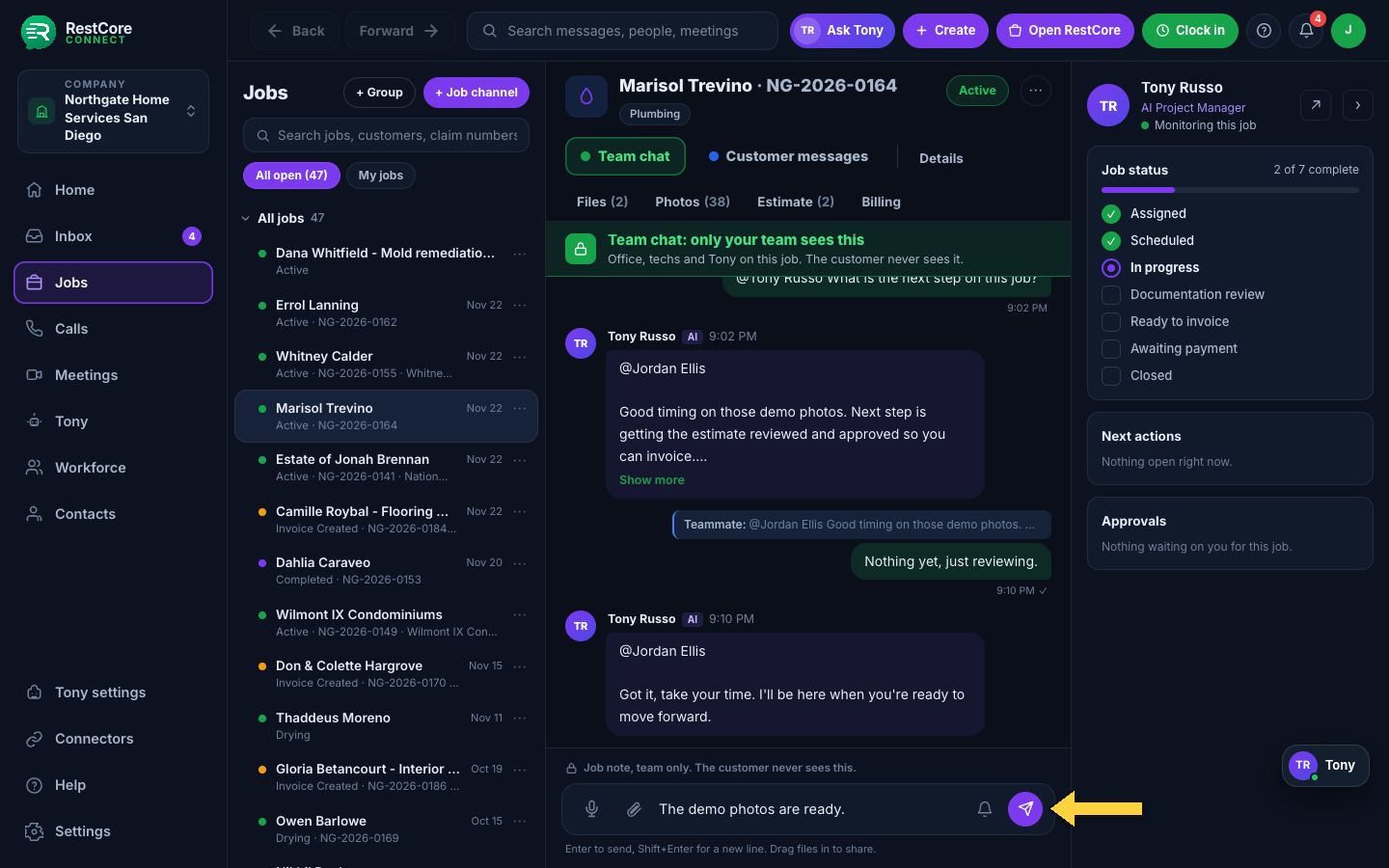
4Send the message to the job team
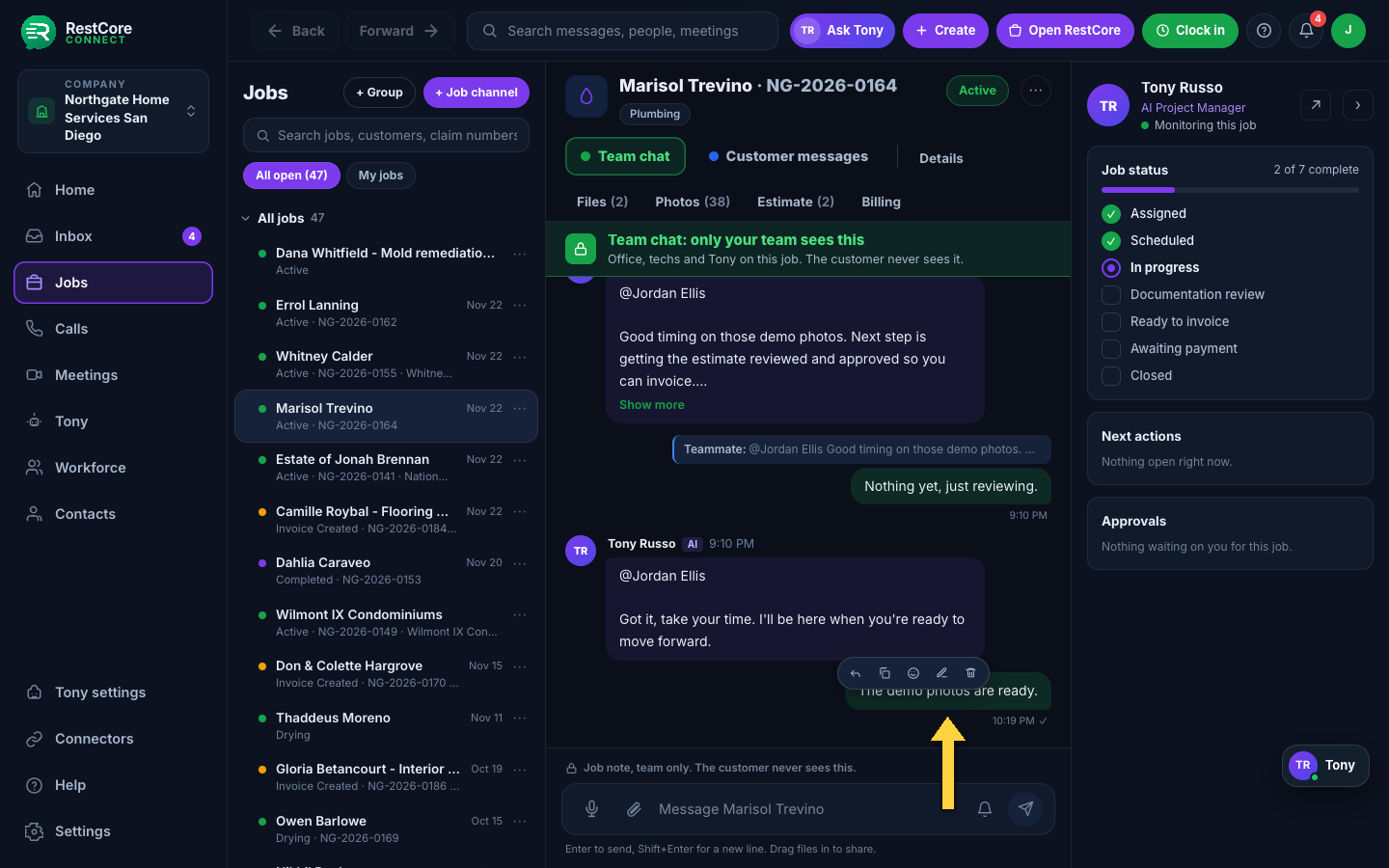
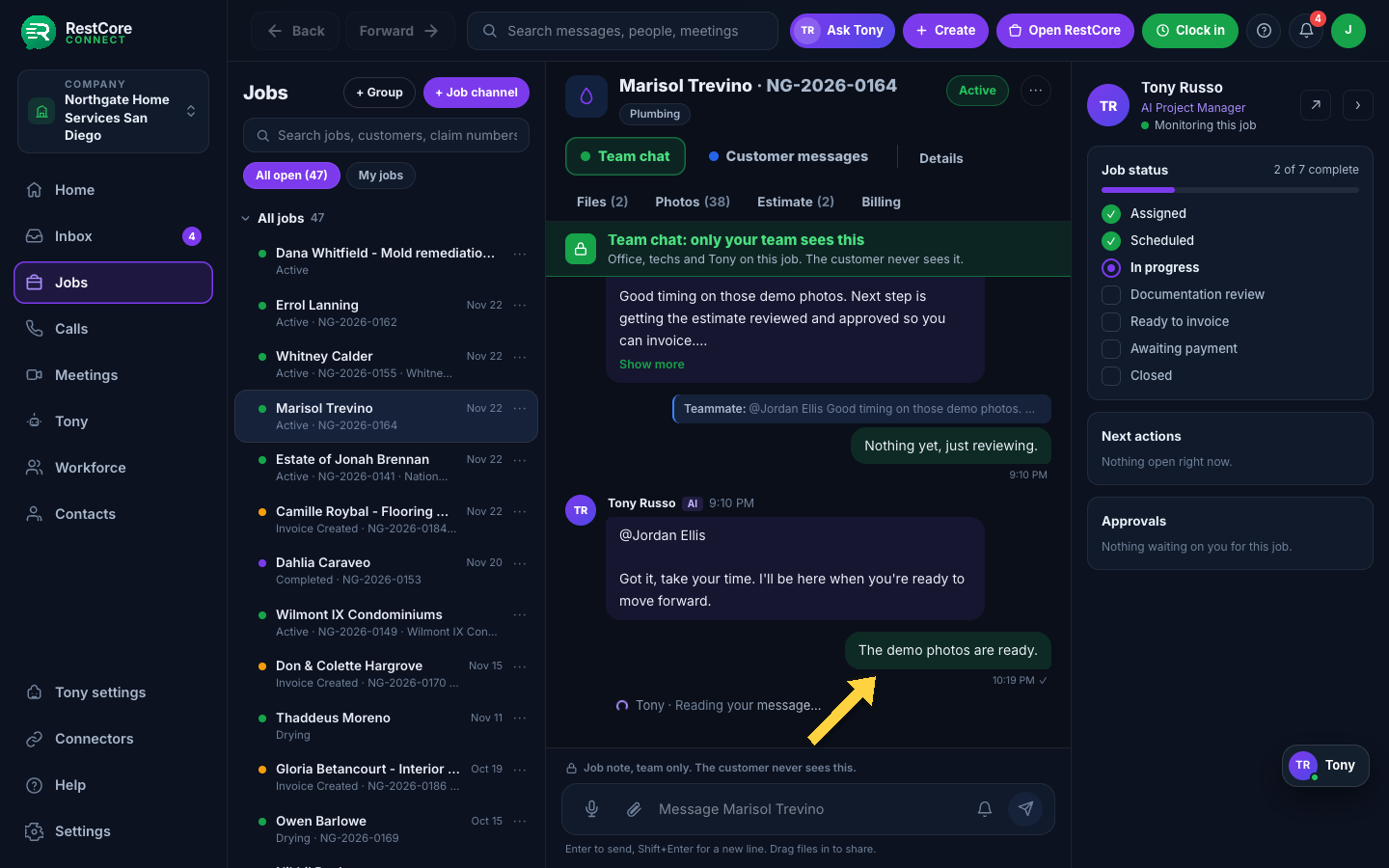
5Check that your message appears
Was this helpful?