Skip to content

Help Center

RestCore™ Help Center

Step-by-step guides, short how-to videos, and answers to common questions.

Coming soon as their guides grow: RestCore Connect · Books · Workforce · Compliance Watch

Help Center › Photos & Rooms

Find and open a job photo

A 30-second how-to with the steps and screenshots below.

In this guide

  1. 1Open Photos on the job.
  2. 2Find the photo you need.
  3. 3Select the photo to open it.
  4. 4Check the photo and its job context.
  5. 5Close the photo to return to the job.

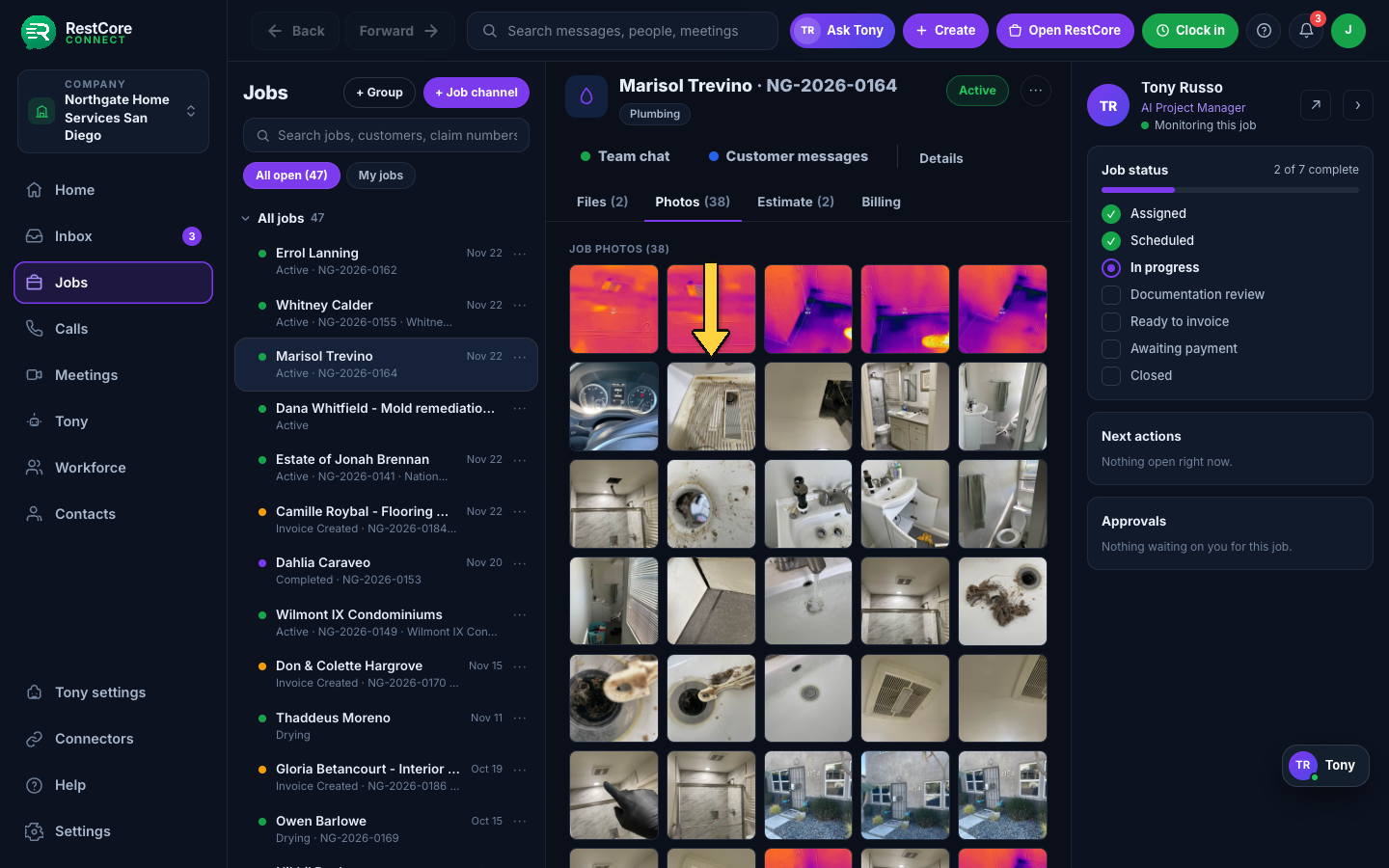
1Open Photos on the job
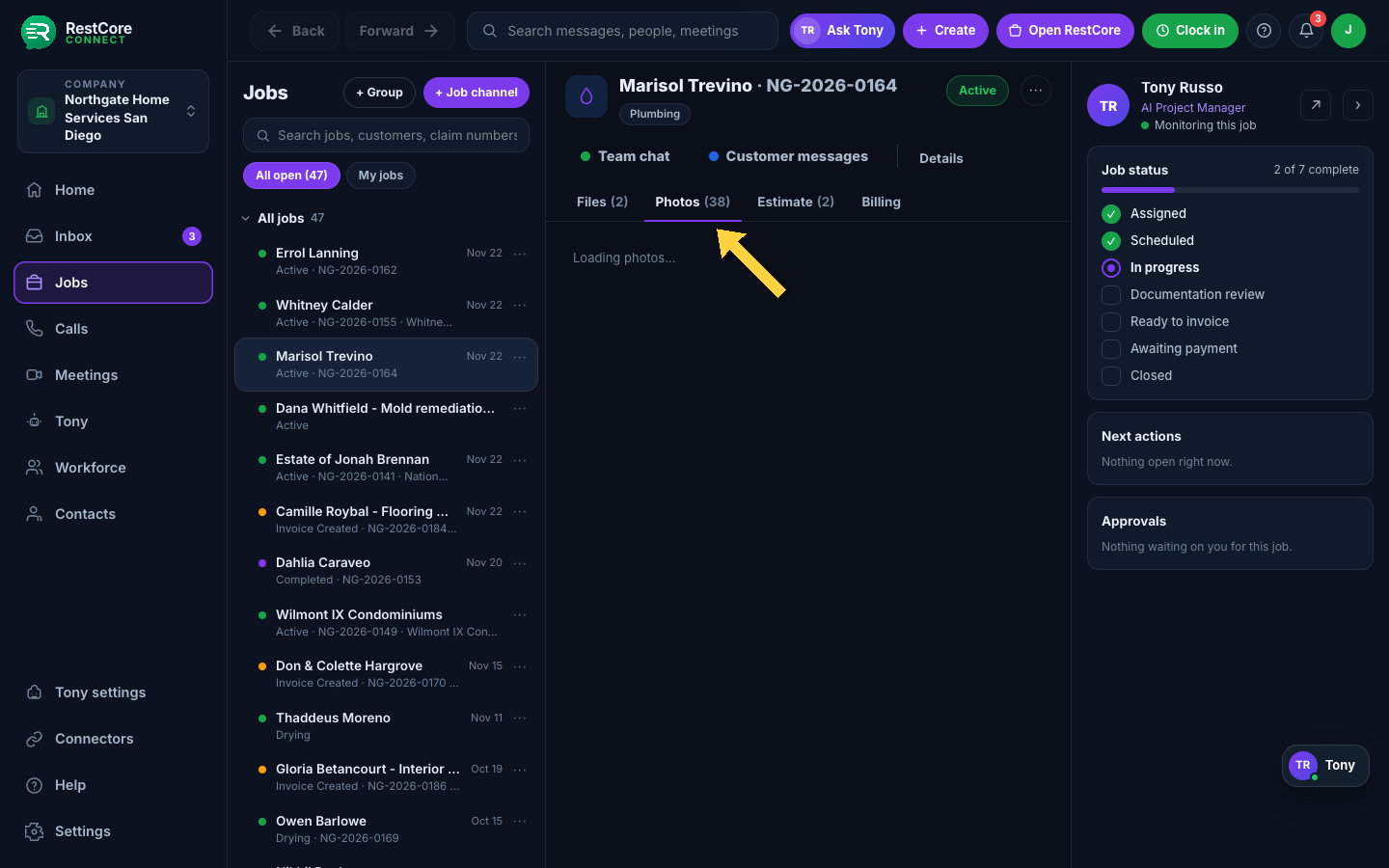
Step 1: Open Photos on the job.

2Find the photo you need

Step 2: Find the photo you need.

3Select the photo to open it

Step 3: Select the photo to open it.

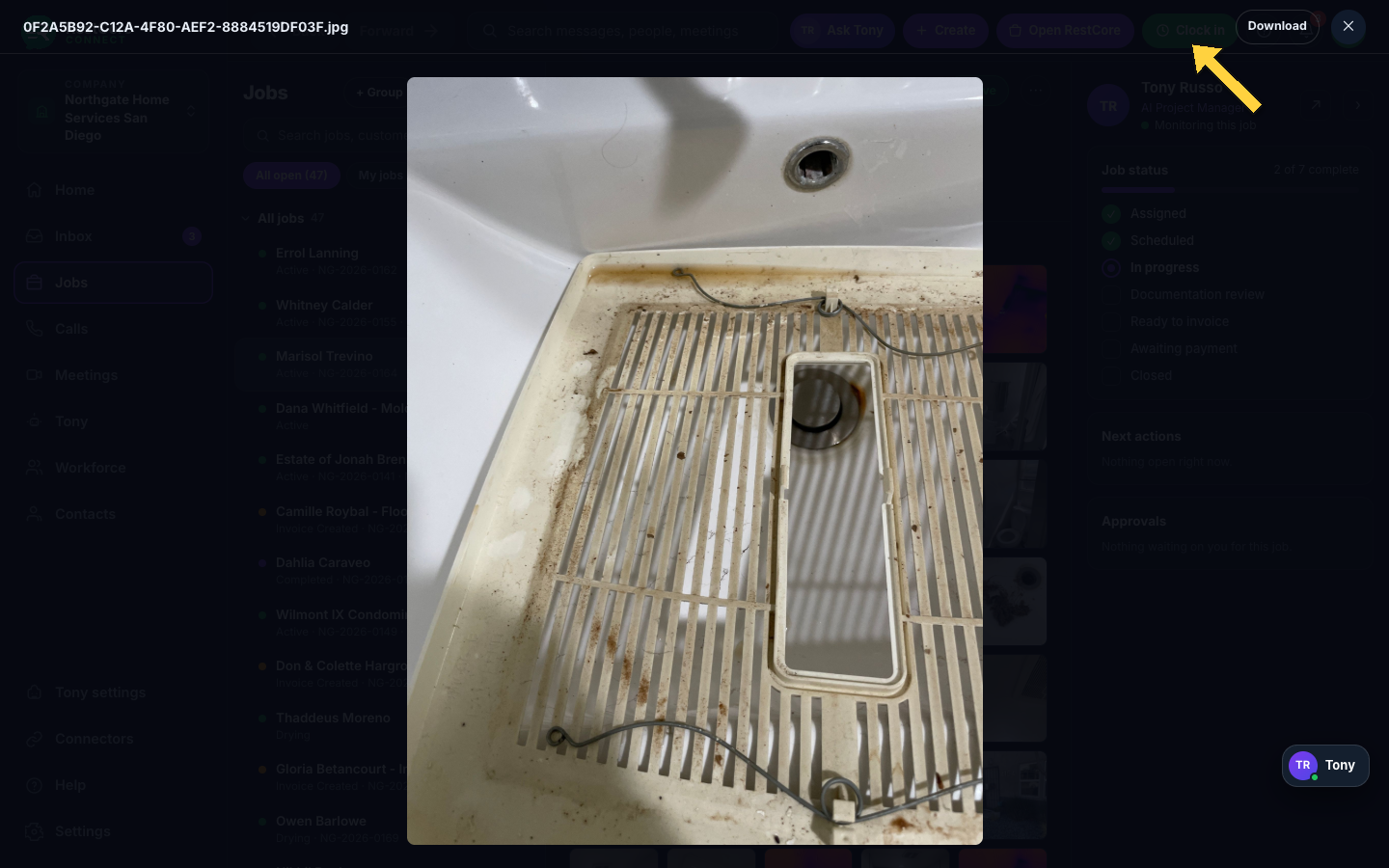
4Check the photo and its job context

Step 4: Check the photo and its job context.

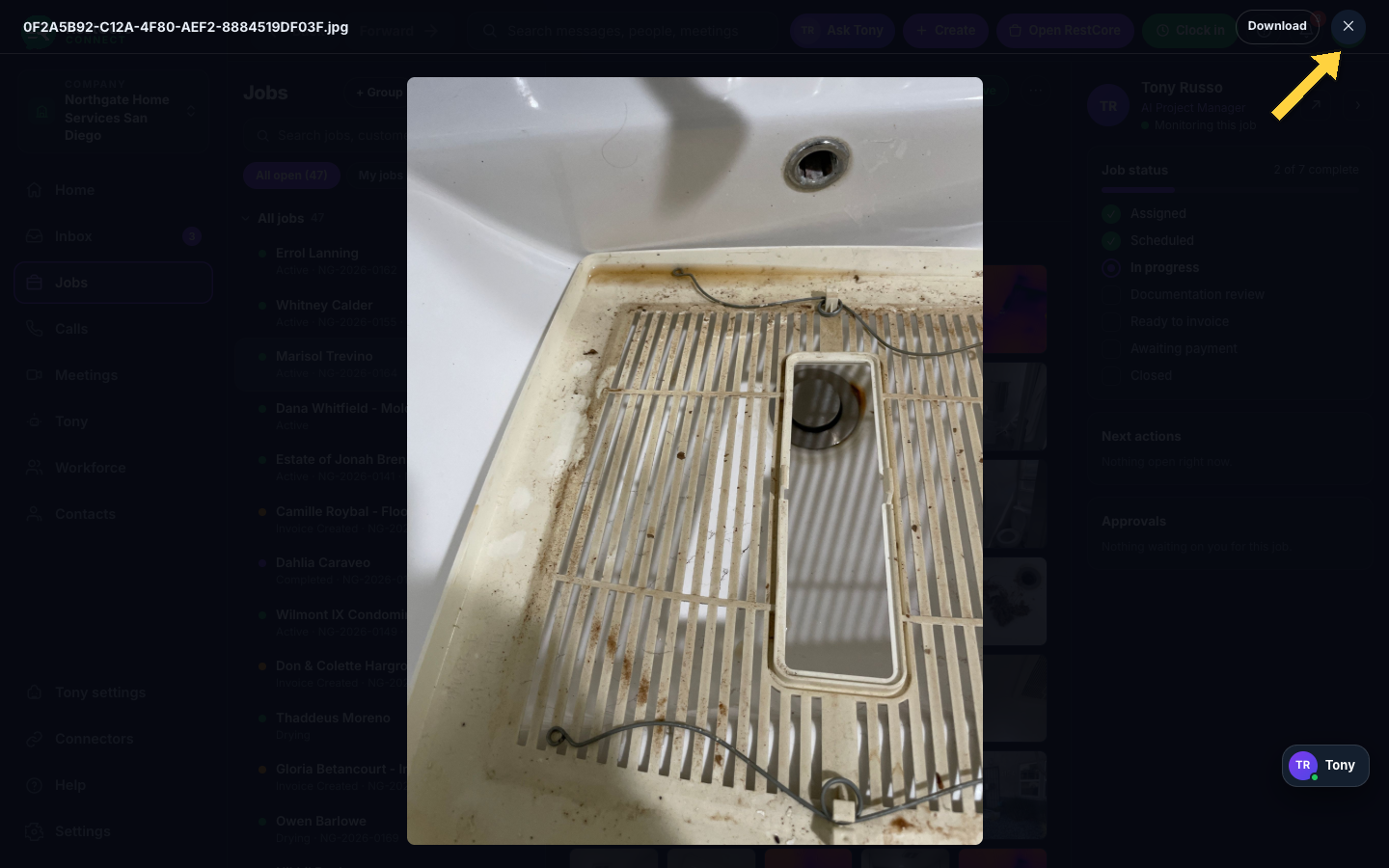
5Close the photo to return to the job
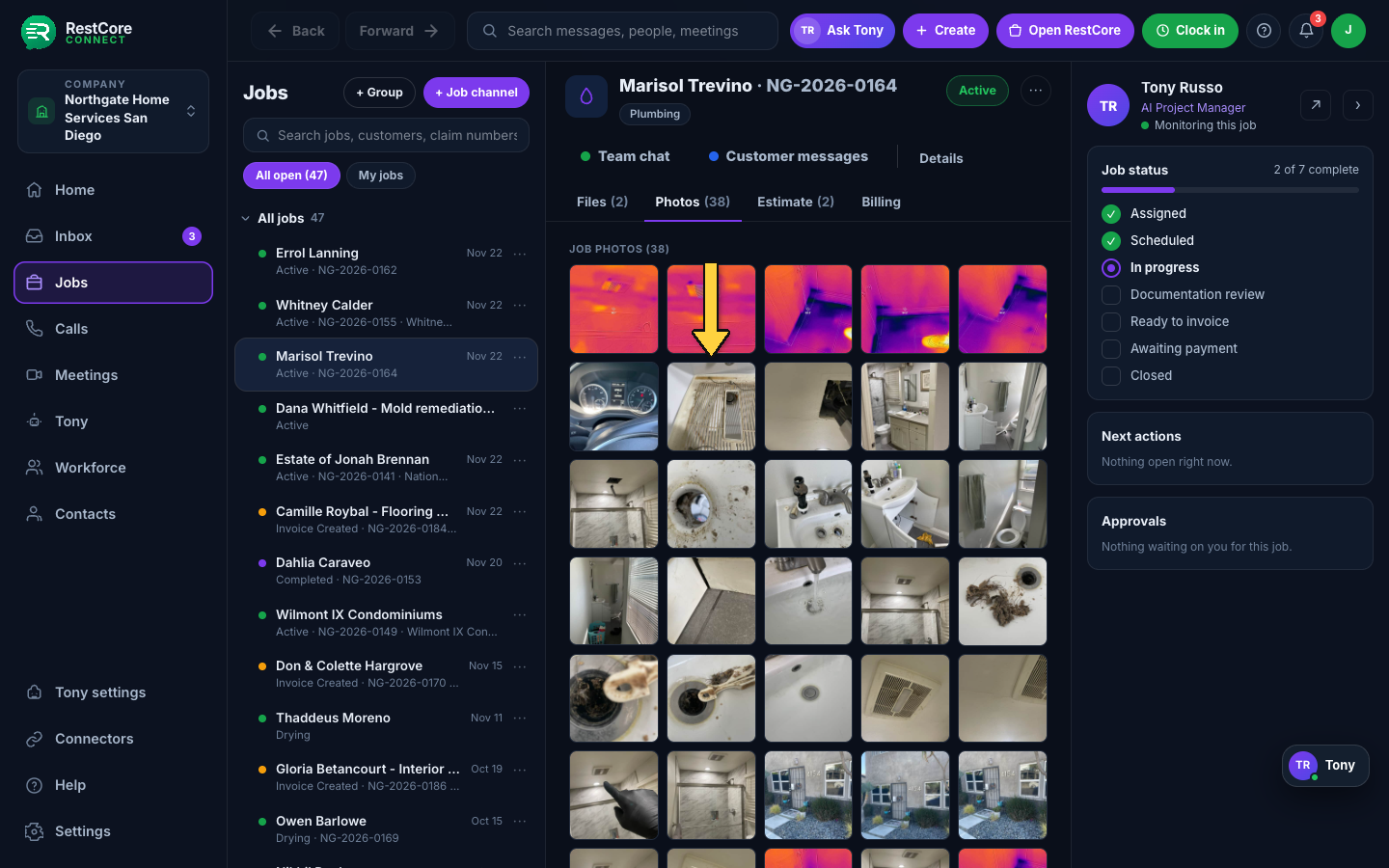
Step 5: Close the photo to return to the job.
Was this helpful?

Still stuck?

Ask Tony Russo AI™ in any job chat. He links the right guide. Or reach our team.

Contact support